I’ve been doing a lot of experimenting with AI agents and coding tools lately, and one of the recurring frustrations has been managing which AI models they use.
Between OpenCode, Hermes Agent and various other tools, I’ve accumulated a fair collection of API keys across different LLM providers. Some offer inexpensive models, others have generous free tiers, and some are better suited to particular tasks.
The problem is that every tool seems to have its own way of configuring models. Some have a nice model picker, others require configuration files, and some make changing models unnecessarily difficult.
Then there’s the problem of providers running out of credits, hitting rate limits or simply being unavailable.
None of these are particularly difficult problems individually, but when you’re regularly switching between models and providers, it gets old fast.
So I’ve built Tiller Router, a free, open-source, self-hosted LLM router that sits between your AI tools and your model providers.
GitHub: https://github.com/dellarb/tiller-router
One place to manage your models
The basic idea is pretty straightforward.
Instead of configuring all your provider credentials and preferred models in every application, you point your AI tools at Tiller Router.
You add your providers and API keys once, then use Tiller’s web interface to decide which models each application should use.
The clever bit is that you can change the model being served to an application without having to touch the application’s configuration.
For example, I can have OpenCode configured to use Tiller with a single API key. Through Tiller’s interface, I can switch that client between a DeepSeek model, GLM or something from OpenRouter.
OpenCode doesn’t need to know anything has changed. Its next request simply goes to whichever model I’ve selected.
This is particularly useful when experimenting with different models or trying to make better use of the various free and inexpensive API offerings.
One model, or a whole catalogue
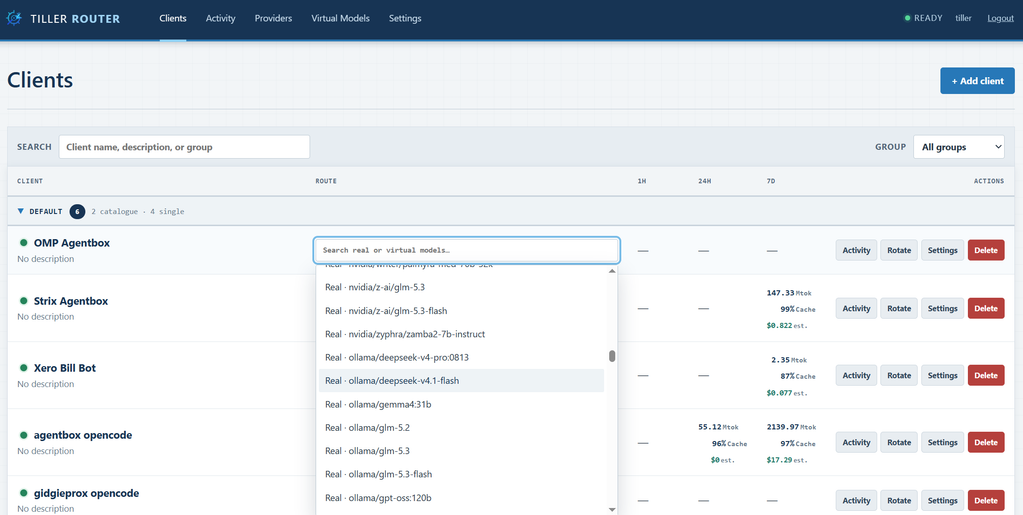
Tiller supports two different ways of providing models to clients.
Single model mode is my favourite. Give an application one API key and Tiller will serve whichever model you’ve selected for it, regardless of the model the application actually requests.
That means you can effectively take control of model selection away from the application entirely. Useful for agents, coding tools and applications with clunky model configuration.
Catalogue mode works more like a traditional LLM gateway. You choose which models a particular API key can access, and Tiller exposes those through its model list endpoint.
This is handy when you still want to select models within an application, but don’t want to scroll through hundreds of models you’ll never use.
Virtual models and automatic fallback
This was the other big reason I wanted to build Tiller.
There’s some excellent value available through free and low-cost LLM providers, but the catch is that they’re not always reliable. Rate limits, timeouts and provider outages can bring an agent to a halt halfway through a task.
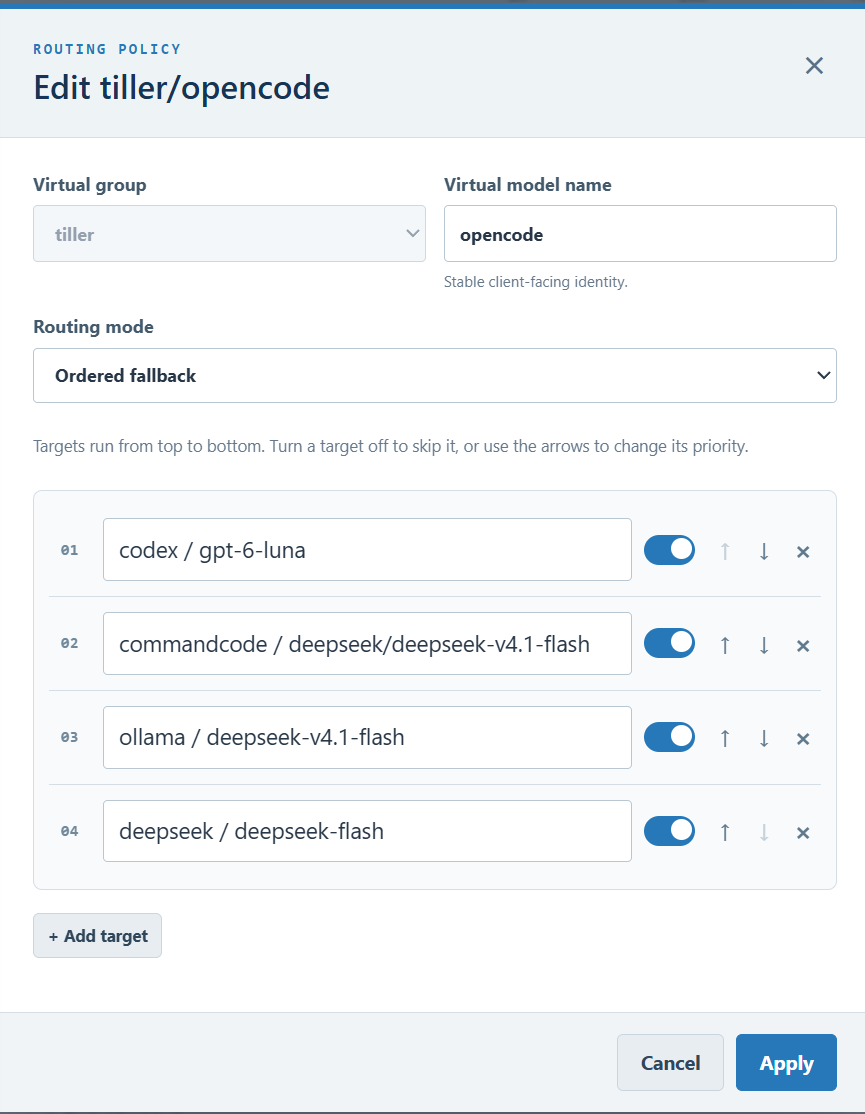
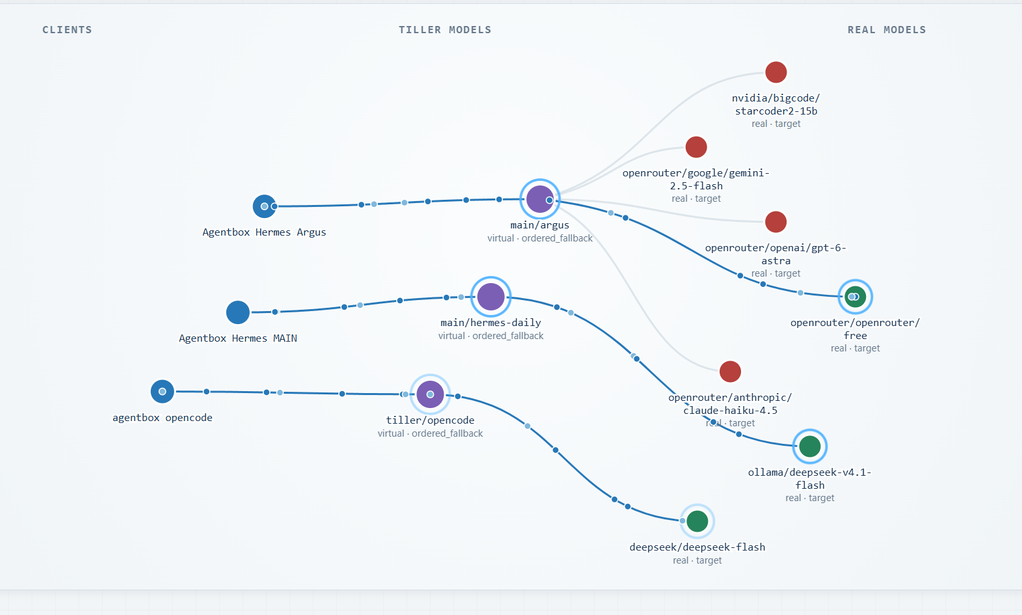
Tiller lets you create virtual models which can be backed by multiple real models in a priority order.
For example, I might create a virtual model called coding configured as follows:
- GLM via Z.ai
- DeepSeek
- Claude via OpenRouter
My coding agent only sees the coding model.
If the first provider fails or times out, Tiller can automatically try the next provider in the list. This happens without needing to change anything in the agent.
There are some sensible limitations here. Once a model has started streaming a response back to the client, Tiller can’t transparently replace it halfway through. Fallback is designed to handle failures before the response has begun.
You can also assign a virtual model to a single-model client, combining both features.
A proper web interface
I’ve tried to keep the interface focused on the things I actually want to do regularly.
You can add providers, manage API keys, browse available models, configure virtual models and steer your connected clients from the one interface.
There’s also an activity view showing which clients are making requests, which models and providers are being used, response times, token usage and when a fallback has occurred.
I find this particularly helpful when an agent has been running for a while and I want to see what it’s actually been doing.

Getting it running
Tiller is designed to be self-hosted and runs as a single Docker container with persistent data stored in a local directory.
If you’ve already got Docker running, it’s a fairly simple setup.
Create a directory and add the following docker-compose.yml:
services:
  tiller-router:
    image: ghcr.io/dellarb/tiller-router:latest
    container_name: tiller-router
    ports:
      - "8080:8080"
    volumes:
      - ./data:/data
    restart: unless-stopped
Start it with:
docker compose up -dThen open http://localhost:8080 and follow the initial setup to create your administrator account.
From there, add your LLM providers, create a client API key and point your preferred AI tool at Tiller.
For access outside your local network, I’d recommend putting it behind an HTTPS reverse proxy and following the repository’s configuration guidance.
The source code and full installation instructions are on GitHub.
Does the world need another LLM router?
Probably not!
There are already some very capable LLM gateways available, particularly if you need sophisticated routing rules, load balancing or enterprise-level features.
But I kept finding that the thing I really wanted was much simpler.
I wanted to connect an application once, choose which model it uses from a web interface, and be able to change that model whenever I liked. Ideally with a fallback so a rate-limited provider wouldn’t interrupt whatever I was working on.
Tiller isn’t trying to automatically work out the smartest or cheapest model for every request. It gives you direct control over that decision.
It’s also deliberately lightweight, with no need to set up a separate database server or a pile of supporting services.
Free and open source
Tiller Router is available on GitHub under the AGPL-3.0 licence.
It’s currently in public beta, so there will almost certainly be bugs and some rough edges, particularly with the huge variety of LLM providers and clients out there.
I’ve been building it around my own use cases, but I’m keen to hear whether others find it useful, what clients work well, and where things could be improved.
If you’re running a collection of AI tools and are tired of constantly fiddling with API keys and model settings, give it a go.
Source code, Docker installation and issue tracker: